How to set up online booking for your wellness practice
By the Welbeo editorial team · Editorial policy

Online booking lets people select an available time and confirm a session without an exchange of messages. For an independent massage therapist, yoga teacher, naturopath or wellness coach, the essential steps are to define your services, configure availability, share one reliable booking link and test the complete process on a phone.
This practical guide explains the choices to make, the Google Business Profile options and common mistakes to avoid.
Quick checklist
- Give every service a descriptive name, duration, price and appointment location.
- Protect breaks, travel times and preparation time in your calendar.
- Explain cancellation and payment policies before the booking is confirmed.
- Add your booking link to your website, social profiles and eligible Google Business Profile.
- Test confirmation, cancellation and reminders from a customer's perspective.
- A booking link makes appointments easier; it does not automatically bring new customers.
What does online booking actually include?
Three elements are often confused:
- Availability calendar: visitors choose from times you have made available.
- Booking page or link: a public address where visitors view services and reserve.
- Google booking integration: depending on eligibility, your Business Profile may display a booking action link or offer provider-based booking functionality.
Start by making the first two work reliably. A Google integration is a separate distribution channel, not a prerequisite.
Five questions before choosing a booking tool
What types of sessions do you run?
Individual appointments, group classes, home visits and video calls require different settings. Group classes need capacity limits, while home visits need travel buffers.
Do you need advance payment or deposits?
A deposit may help set expectations around cancellations, but review payment-processing fees and refund rules. A platform charging no additional booking commission does not necessarily mean card-processing fees are zero.
Do you need to attract new clients?
A calendar helps existing visitors convert. A practitioner profile, useful service pages and local discovery can help people find you in the first place. Keep these goals separate when comparing providers.
Which administrative tasks need automation?
Confirmation emails, reminders, calendar synchronization and appointment changes can save time. Confirm which features are included in the plan you choose.
Do you work alone or with colleagues?
Shared spaces and studios may need separate practitioners, rooms, services and calendars. Test scheduling conflicts before going live.
How to set up online booking step by step
1. Describe your services clearly
For each service specify the treatment or class name, duration, price, format and venue. “Ayurvedic Abhyanga massage, 60 minutes, in Rueil-Malmaison” communicates more than simply “massage”.
2. Configure real availability
Add working hours, breaks, travel time and buffers between sessions. Set a minimum notice period if same-day bookings are difficult to accommodate.
3. Explain cancellation and payment policies
State the conditions before confirmation. Make changes and refunds understandable, especially when deposits are involved.
4. Create a reassuring booking page
Explain what to expect, your professional background and how to reach you. Use real photos and avoid making unsupported treatment or health promises.
5. Test the complete customer journey
Book a sample appointment using a different email address and a mobile phone. Verify the time zone, confirmation, reminders, calendar entry, cancellation options and what happens if a slot becomes unavailable.
Where should you share your booking link?
Put the link in places customers already visit:
- Your practitioner website: a clear “Book a session” call to action near your services.
- Instagram profile and Stories: a bio link or Story link sticker, rather than relying on a regular feed caption.
- Google Business Profile: an appointment action where available and eligible.
- Email signature and newsletters: a consistent link people can revisit.
- Messages and printed materials: share the same booking destination or a QR code.
Prefer one main booking destination so changes are easier to maintain.
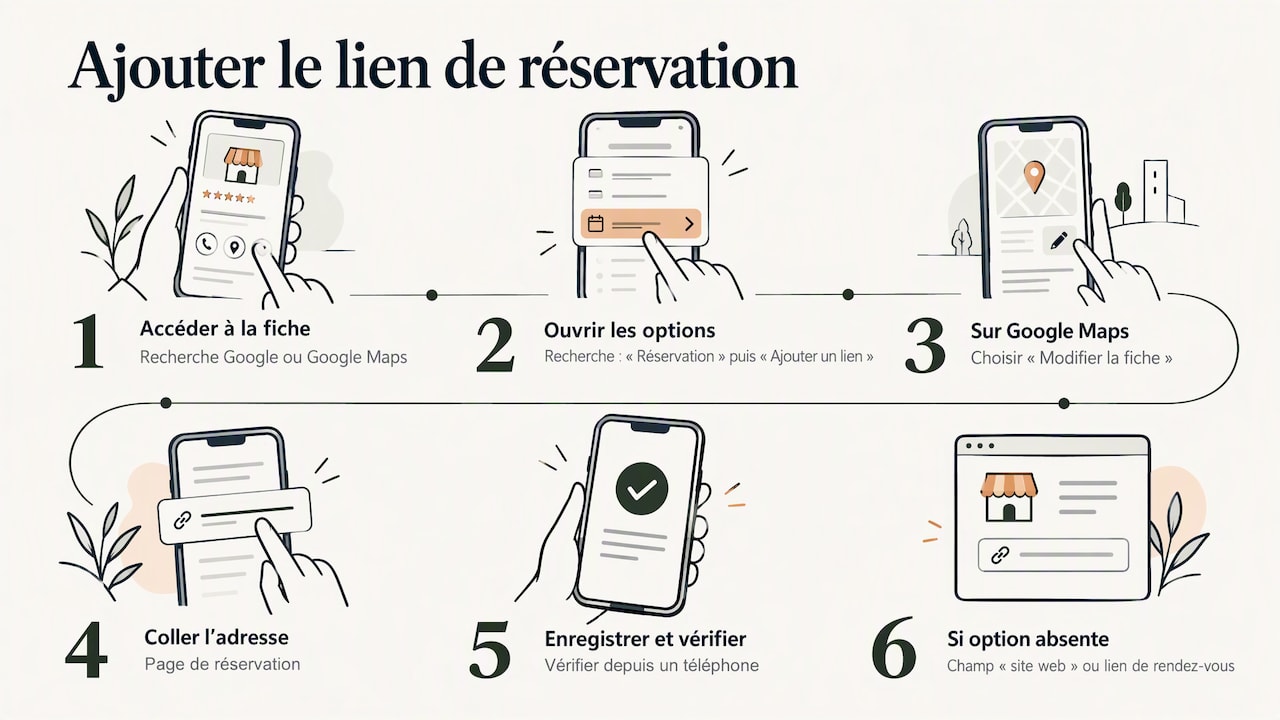
Add booking to your Google Business Profile
Google provides business profile guidance. Eligible local businesses may add booking or appointment action links, subject to category and region availability. An online-only business with no face-to-face customer contact may not be eligible for a Business Profile.
Add a booking link
Open your eligible Business Profile and look for the relevant booking or appointment link settings. Enter the URL of your actual booking page, save it and verify the public result on mobile. Google’s interface and available fields can vary.
What about Google's integrated “Book” button?
Provider-based booking depends on whether your booking provider participates in Google's applicable integration program and whether your business category and location are supported. Google explains provider-based bookings here.
Do not assume a regular booking link enables Reserve with Google. Ask the provider to confirm support before committing to a plan. Welbeo's booking link can be shared separately; direct Reserve with Google integration should not be promised unless activated and verified for your business.
Will a calendar alone bring in more clients?
Not necessarily. A booking page primarily reduces friction for people who already found you. New customer discovery also depends on an accurate local presence, meaningful service descriptions and trust.
For inspiration, explore professional websites supported by Welbeo:
- Minsana Massage in Rueil-Malmaison — massage services and a local practitioner website.
- Stéphanie Avédissian — practitioner services and online information.
- Carole Pariat — hypnotherapy practice information.
- Laure Manlot — practitioner website and appointment information.
These examples illustrate ways to present services and contact options, not guaranteed search rankings or booking results.
How Welbeo supports online booking
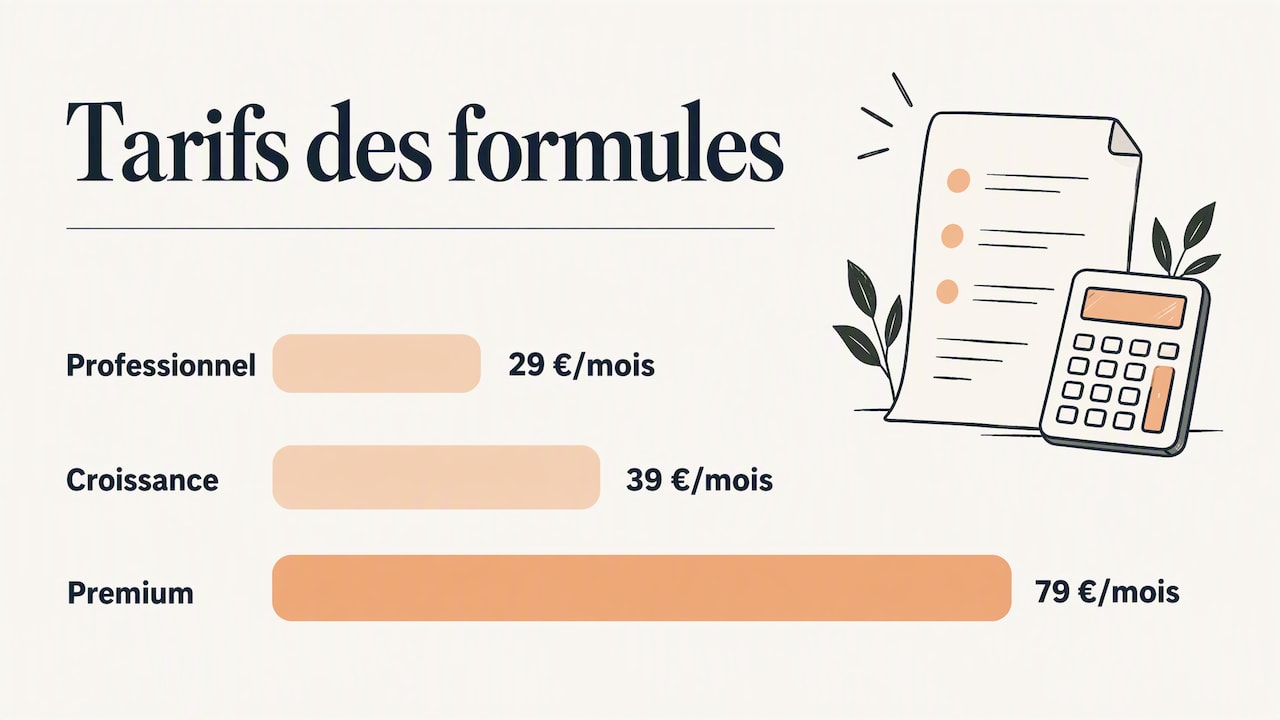
Welbeo brings together practitioner pages, online appointment booking, availability management and tools for managing a wellness business. Available features and plan limits may vary, so check the current Welbeo pricing page before choosing a plan.
Welbeo's stated 0% platform commission should be distinguished from any payment processor charges, if online payments are used. A linked booking page can still be useful without advance payment.
Common mistakes that lose appointments
- Linking to a generic homepage instead of the booking page.
- Giving services vague titles or hiding prices.
- Forgetting breaks and producing scheduling conflicts.
- Leaving confirmation or cancellation instructions unclear.
- Showing inconsistent locations, prices or opening hours across channels.
- Failing to test on mobile.
- Assuming bookings can be attributed to Google without evidence.
A one-week launch plan
| Day | Action |
|---|---|
| 1 | List services, durations and prices |
| 2 | Configure schedules, breaks and cancellation rules |
| 3 | Complete the practitioner page and test the mobile booking journey |
| 4 | Add the link to an eligible Google Business Profile |
| 5 | Update your website, Instagram profile and email signature |
| 6 | Ask a colleague to test booking and cancellation |
| 7 | Review any issues and correct them before wider promotion |
Frequently asked questions
How can I create an online booking link?
Choose a booking tool, add your services and availability, and copy the public booking URL. Test it before sharing it.
Do I need a website?
Not necessarily. A standalone booking page can work. A professional website helps you explain your services in more detail and can support discoverability.
Can I add booking to Google for free?
A Google Business Profile is free for eligible businesses, but action-link availability depends on Google's rules. Third-party booking providers may charge fees, and an integrated booking button is not the same as adding a link.
What fees should I check?
Review monthly subscriptions, extra staff seats, card-processing charges, booking commissions and refund costs. Confirm the applicable terms for your chosen plan.